Family Friendly

Box Seats keeps adult material out of the house in two independent ways: nothing adult is sent to your line in the first place, and the app itself detects and locks anything adult that reaches it from any playlist you add. The key to both is a six-digit PIN — the one that arrives with your login details when you sign up.

Your PIN arrives with your login details

When your subscription is activated we email you a username and a six-digit password. That password is also your mature-content PIN. There is nothing extra to set up, and nothing extra to remember: one number per household unlocks the account and unlocks protected content.

Because the PIN lives on your account rather than on the television, it behaves the way you would want it to:

  • It survives a re-install. Wiping the app or replacing the box does not lose it.
  • It is already in place on the second TV the moment that TV signs in.
  • If you forget it, we can reset it for you — and the new PIN reaches every screen in the house at the next sign-in.
  • Nobody using the app can quietly change it. The PIN is set on the account and the app will not offer to overwrite it.

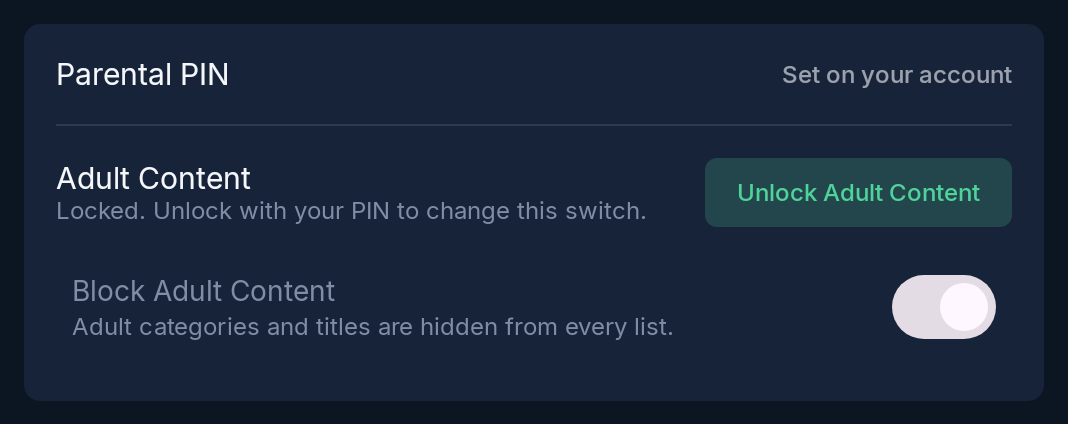
You will see this on the television under Settings → Parental Control. Where a device PIN would normally offer a Change PIN button, an account PIN reads Set on your account instead.

The Parental Control card in Box Seats settings, showing the Parental PIN set on your account, Adult Content locked, and the Adult Content Detection switch

Settings → Parental Control, on a line whose PIN is set on the account.

Five wrong tries and the keypad stops

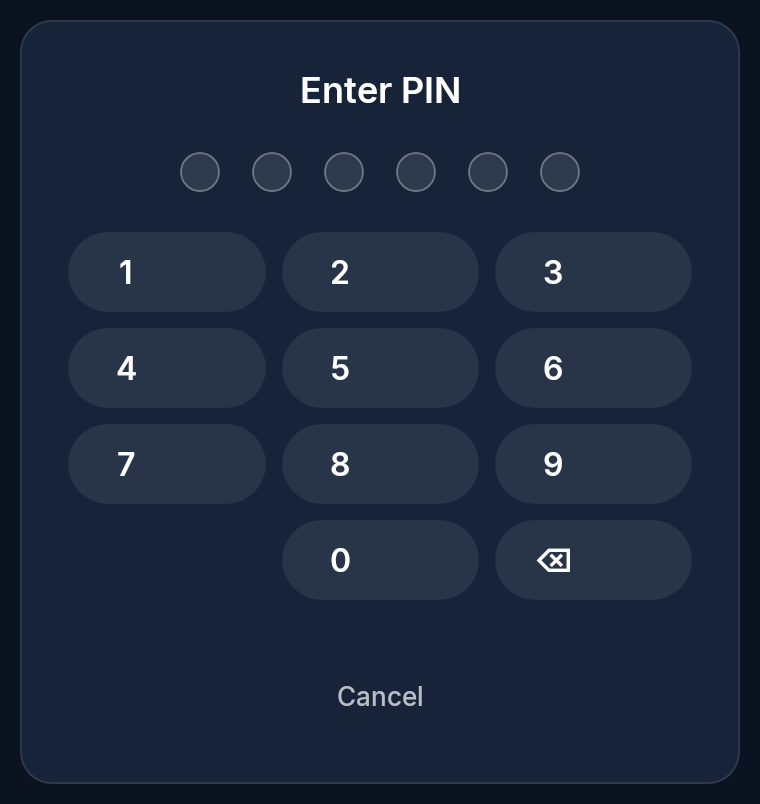
The keypad sizes itself to your PIN and only submits once the whole number is entered. Five wrong attempts lock it for fifteen minutes, so guessing a six-digit number is not a practical way past it.

The Box Seats PIN keypad asking for a six-digit PIN

The keypad, sized for a six-digit account PIN.

How adult detection works

Providers are inconsistent about labelling. Some set a proper adult flag on a category, many do not, and some bury explicit material in a category with an innocuous name. Box Seats therefore looks at more than the flag.

  • The provider flag is always honoured. Anything your provider already marks as adult is treated as adult, whether the detection switch is on or off.
  • Category and group names are checked against a keyword list covering English, Spanish, Portuguese, French, German, Italian, Dutch, Nordic, Turkish, Russian, Arabic and anime terms. Accents, spacing and punctuation are ignored, so “ADULTES 18+” and “adult-18plus” both match.
  • Individual channel, film and series names are checked against a much stricter list of explicit terms only. That is deliberate: mainstream titles such as “Sex Education” or “Naked and Afraid” would otherwise be swept up by the broader list, so titles are held to a narrower standard than category labels.

Detection runs while a playlist is downloaded, so a change to the switch takes effect on content already on the device after the next provider sync.

What happens to what it finds

Anything detected as adult obeys a single switch, Block Adult Content, which is on by default. While it is on, adult categories and titles are hidden from every list — not greyed out, not behind a warning, but absent from browsing, search and the guide. Turning it off requires the PIN first, and the switch stays read-only until the PIN has been entered.

On a Box Seats package it is already off at the source

Everything above is what the app does. On a Box Seats subscription there is a second, stronger layer behind it: adult channels are not part of any of our packages and are never sent to your line at all. Your account cannot request them, and no setting inside the app can produce them.

Detection still matters, because Box Seats is a player as well as a service: if you add another provider, an M3U playlist or a portal of your own, that source gets the same treatment. M3U playlists and portals carry no adult flag of their own, so name-based detection always applies to them.

Locking anything else

Detection is a safety net, not a guarantee — providers name their categories freely, so it is worth looking over a new playlist yourself after its first sync. Anything detection misses, or anything you simply would rather the children did not open, can be locked by hand under Settings → Protected Groups. Categories the app has already flagged appear there as Auto-Protected. Saving a change asks for the same PIN.

Separately, a category can be hidden rather than locked. Hiding takes it out of the lists without a PIN prompt; locking keeps it visible but closed until the PIN is entered.

If you lose the PIN

Contact us and we will reset the password on your line. It becomes your new sign-in password and your new PIN at the same time, on every screen in the house.

Get in touch if you would like the PIN reset, or see the setup guides if you are still getting the app installed.

Get in Touch